JetBrains Fleet in 2025: A Retired IDE for the Future
I recently came across the official JetBrains announcement and suddenly realized that Fleet is truly “retiring.” Starting from December 22, 2025, Fleet will stop distributing new versions and updates. While existing users can continue using the downloaded version, server-dependent features (like AI Assistant) may gradually become unavailable.
Honestly, this news came as a bit of a surprise. Four years ago, when Fleet burst onto the scene as a “next-generation lightweight IDE,” I downloaded it with a curious, try-something-new mindset. Little did I expect that I’d end up using it for four whole years. Whether it was writing scripts, tweaking configurations, or building quick prototypes—Fleet’s clean interface, lightning-fast startup, and silky-smooth responsiveness made me never want to switch back to heavyweight IDEs again. And now, four years later, VS Code remains essentially unchanged, but Fleet is quietly stepping off the stage.
What Exactly is Fleet? The “Lightweight Faction” of the Editor World
Let me first give you a quick recap: When JetBrains launched Fleet, their goal was to create a lightweight, multi-language, intelligent-assisted code editor. Fleet adopted a distributed architecture, discarding the heavy historical baggage of the traditional IntelliJ platform in favor of modern UI and extreme performance. Initially positioned as a “lightweight IDE,” it later shifted to “editor with intelligent coding assistance,” and even attempted an AI-first approach.
Compared to traditional IDEs (like IntelliJ IDEA or Visual Studio), editors focus more on the essence of “writing code”: syntax highlighting, intelligent completion, and quick navigation, without necessarily requiring built-in build tools, debuggers, or database utilities. Fleet’s advantages include:
- Minimalist and beautiful interface — no extra panels cluttering your view
- Lightning-fast startup and low memory footprint — far below heavyweight IDEs
- Excellent cross-platform consistency — works seamlessly across Mac/Windows/Linux
- Particularly friendly for lightweight tasks like scripts, config files, and Markdown
Unfortunately, JetBrains eventually realized that maintaining two overlapping product lines—IntelliJ family and Fleet—was confusing users and dividing their R&D efforts. They decided to redirect Fleet’s technical expertise toward new “agentic development” products, marking the end of Fleet’s mission as a general-purpose editor.
Editor’s Note: The image below shows Fleet’s typical interface—file tree on the left, code area on the right, clean and crisp.
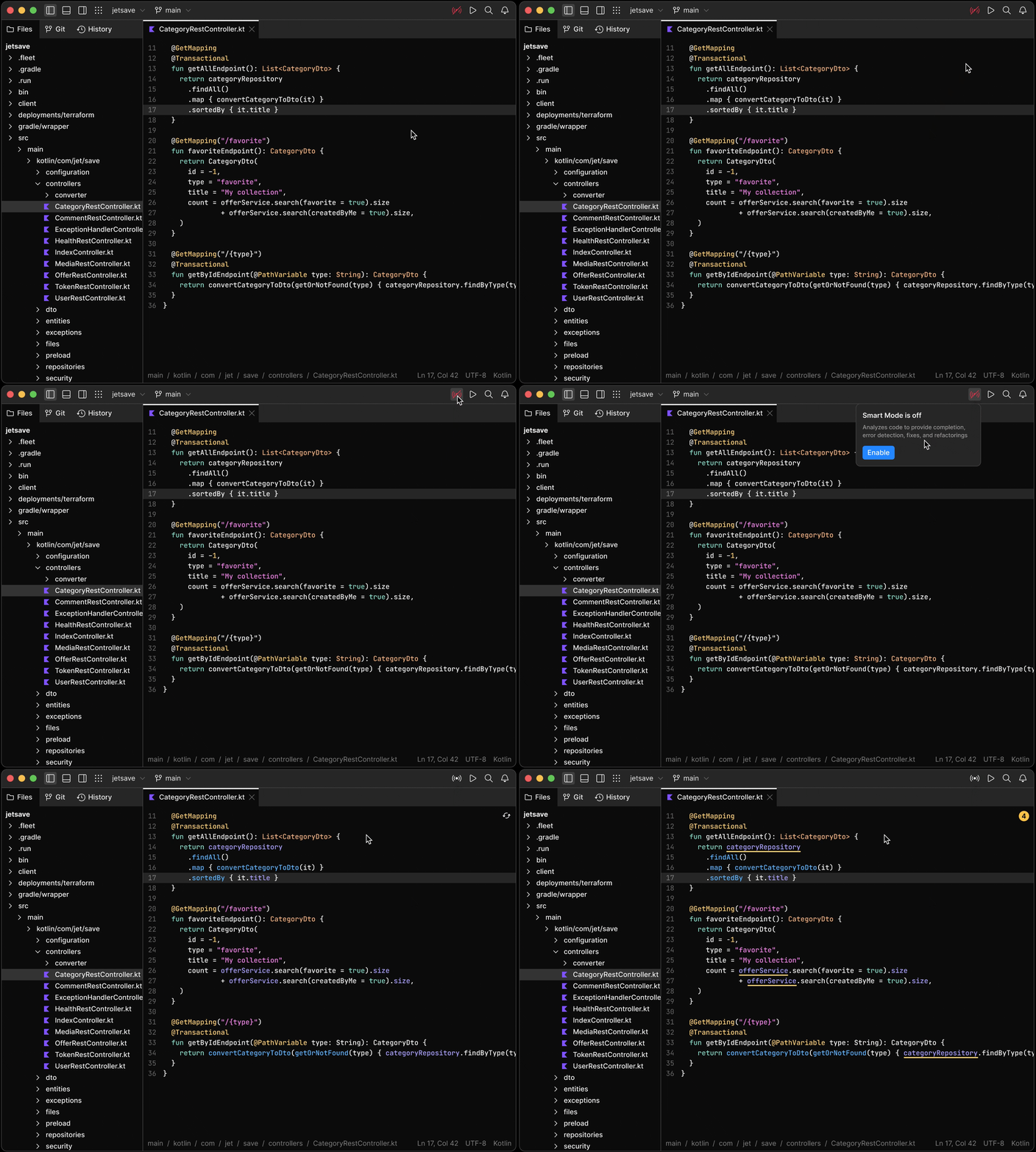
Fleet's classic interface layout
Why Editors Matter: The Developer’s “Second Brain”
Modern development is no longer about “opening one big IDE to handle everything.” We face multi-language, multi-environment, distributed projects. Lightweight editors excel precisely because of their “focus,” outmaneuvering many heavyweight tools in terms of efficiency and comfort.
| Editor | Strengths | Weaknesses |
|---|---|---|
| VS Code | Unmatched extension ecosystem, industry standard | Can get laggy with too many plugins |
| Neovim / Helix | Pure terminal native, keyboard-driven, minimal resources | Steep learning curve |
| Zed | Rust-written, pursuing ultimate speed and collaboration | Relatively new, smaller ecosystem |
| Sublime Text | Veteran lightweight king, loyal fanbase | Fewer modern features |
Fleet’s original ambition was to be “JetBrains’ version of VS Code”—intelligent yet not bloated. Unfortunately, the market competition was fierce, and it ultimately failed to establish a solid foothold.
Terminal + Editor: The True Productivity Ceiling
Many developers only focus on the editor itself, overlooking that the terminal is actually the other half of the workflow. An excellent combination allows seamless switching between “writing code” and “executing commands,” dramatically boosting efficiency.
Why Pairing with a Terminal is Essential
Editors handle creation (writing code, completion, refactoring), while terminals handle execution (git push, dotnet build, docker compose up, ssh remote deployment). Separating them leads to frequent window switching, copy-pasting, and context loss. A good setup enables:
- Split-screen real-time log and code viewing
- Full keyboard-driven operations—no mouse needed
- Low resource usage, suitable for self-hosted servers or low-end devices
Classic Combinations (My Personal Favorites)
Combo A: Neovim + Modern Terminal Emulator + Multiplexer (Geek’s Choice)
- Terminal: WezTerm (best cross-platform), Alacritty (extremely lightweight), Kitty
- Multiplexer: Tmux or Zellij (supports pane splitting, session persistence)
- Workflow tools:
fzffor fuzzy file search,lazygitfor visual Git,ripgrepfor lightning code search,zoxidefor smart directory jumping,starshipfor prompt beautification - Ideal scenario: C#/.NET developers can use
dotnet watchin one pane for real-time hot reload while editing Razor or .cs files in Neovim. Fully keyboard-driven, smooth experience over SSH.

Neovim running in Tmux—config scripts on the left, code on the right, multi-pane collaboration
Combo B: VS Code + Integrated/External Terminal (Most People’s Daily Driver)
VS Code’s built-in terminal supports PowerShell, WSL, Docker containers—direct split-screen. For advanced users: disable the built-in terminal and pair with Windows Terminal, iTerm2, or WezTerm as the external default. The benefit? More terminal customization while keeping the editor lightweight.
- Shortcut keys: Ctrl+` to quickly summon terminal, Ctrl+Shift+5 to split terminal window
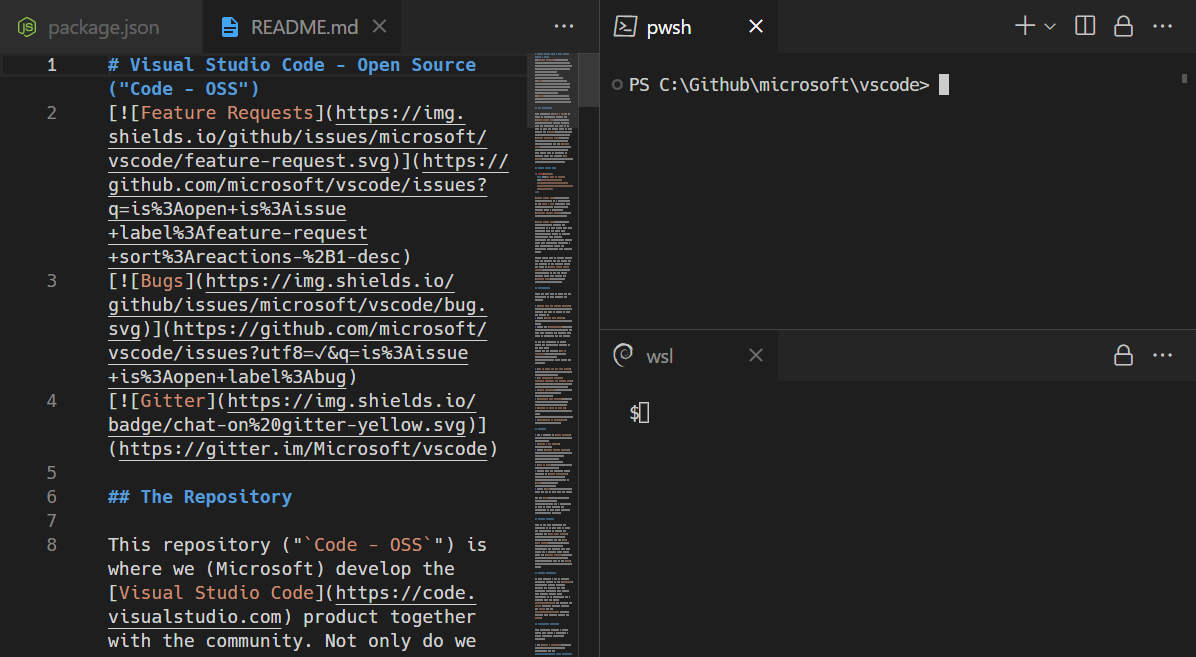
VS Code's classic layout—editor on the left, terminal on the right, perfect fusion
Combo C: Fleet’s Original Approach
Fleet also supports integrated terminals—though not as feature-rich as VS Code’s ecosystem, its unified UI and faster responsiveness are notable. I often paired it with an external terminal to run .NET CLI; it was especially comfortable for writing config scripts. Now that it’s discontinued, this combo can only be “archived.”
Practical Tips (.NET / Self-Hosted Developers Must-Read)
- Use
dotnetCLI in the terminal for migrations, testing, and publishing—let the editor focus on code - When managing self-hosted servers, use terminal SSH to manage Docker/Halo/Gitea, edit YAML directly in the editor
- Advanced toolchain:
atuinfor command history,deltafor beautiful git diffs,batas a bettercat - Resource monitoring: Use
btoporhtopin the terminal to monitor server load in real-time while tweaking configs in the editor—closed-loop efficiency at its best
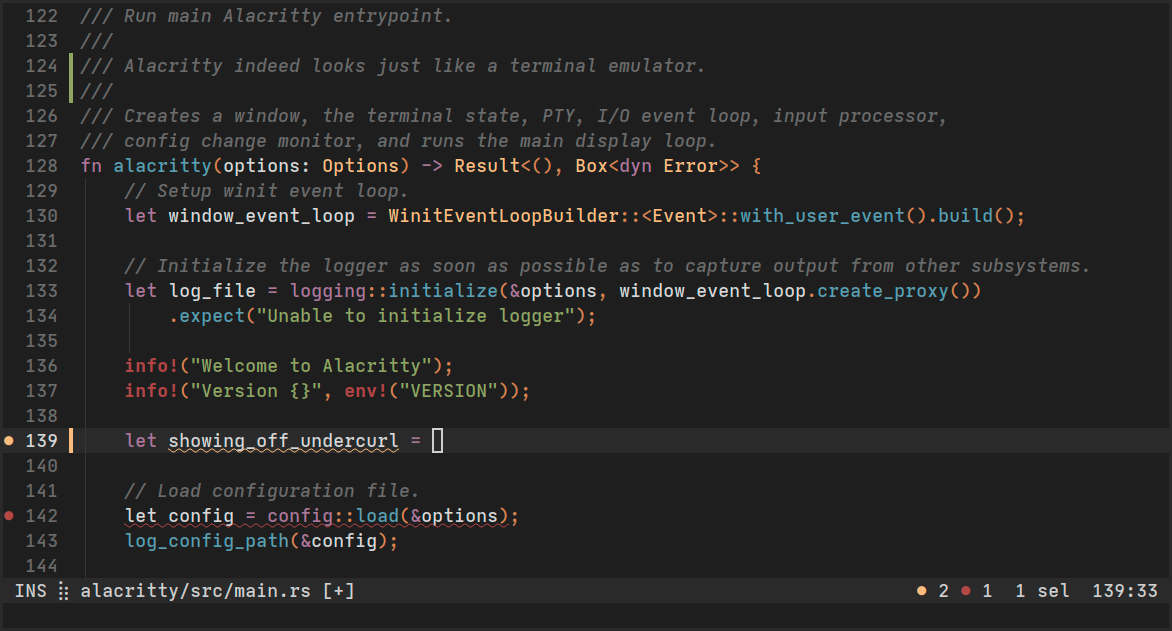
Modern terminals like Alacritty—minimalist and efficient for code editing
What Should We Do After Fleet Stops Updating?
Existing users shouldn’t panic—installed versions will still work. But for the long term, here’s what’s recommended:
| Recommendation | Description |
|---|---|
| First Choice | VS Code + JetBrains Keymap extension, preserving similar keyboard shortcuts |
| For Geeks | Go directly to Neovim—steep learning curve but massive rewards |
| JetBrains Fans | Return to IntelliJ/Rider family—more mature AI features |
| New Attempts | Zed, Cursor (AI-enhanced VS Code), or Helix |
Technology iteration works this way—Fleet pushed the “lightweight intelligence” concept to the market and left its excellent components for other JetBrains products. Its departure isn’t a failure; it’s yielding the stage to a more focused new direction: “agentic development.”
Final Thoughts
Tools, after all, are just tools. When they become comfortable to use, they become part of our daily routine. Fleet’s four years of company reduced a lot of friction when I wrote code, and made me understand more deeply: The best editor isn’t the one with the most features—it’s the one that makes you “forget it exists.” The perfect terminal + editor combination takes this “forgetting” to an extreme.
I’ll most likely continue using the VS Code + terminal combination in the future, but Fleet’s clean and crisp memory will forever remain in my development resume.
Feel free to share your editor + terminal setup in the comments! Neovim diehard, or VS Code faction? Or do you have your own Fleet stories to tell?
我最近刷到 JetBrains 官方公告,才意识到 Fleet 真的要”退役”了。从 2025 年 12 月 22 日起,Fleet 将停止新版本下载和更新,已下载的用户虽然还能继续使用,但依赖服务器的功能(如 AI Assistant)可能会逐步失效。
说实话,这消息来得有点突然。四年前,Fleet 作为”下一代轻量 IDE”横空出世时,我也是抱着尝鲜的心态下载了它。没想到一用就是四年。写脚本、调配置、快速原型,Fleet 的界面干净、启动飞快、响应丝滑,让我再也不想切回重型 IDE。结果四年过去,VS Code 还是那个 VS Code,Fleet 却要默默谢幕了。
Fleet 到底是什么?编辑器世界的”轻量派”
先简单回顾一下:JetBrains 推出 Fleet 时,目标是打造一款轻量级、多语言、智能辅助的代码编辑器。它采用分布式架构,抛弃了传统 IntelliJ 平台的沉重历史包袱,追求现代 UI 和极致性能。初期定位是”轻量化 IDE”,后来调整为”带智能编码辅助的编辑器”,甚至尝试过 AI-first 路线。
和传统IDE(如 IntelliJ IDEA、Visual Studio)相比,编辑器更专注”写代码”本身:语法高亮、智能补全、快速导航,而不强求内置构建、调试、数据库工具。Fleet 的优势在于:
| 特性 | 说明 |
|---|---|
| 界面极简 | 没有多余面板干扰视线 |
| 启动快速 | 内存占用远低于重型 IDE |
| 跨平台一致 | Mac/Windows/Linux 随意切换 |
| 轻量友好 | 对脚本、配置文件、Markdown 特别适合 |
可惜的是,JetBrains 最终发现,同时维护 IntelliJ 家族和 Fleet 两条重叠的产品线,容易让用户困惑,也分散了研发精力。于是他们决定把 Fleet 的技术积累转向”智能体化开发”(agentic development)新产品,Fleet 作为通用编辑器的使命就此结束。
编辑说明:下图是 Fleet 典型界面,左侧文件树、右侧代码区,干净利落。
Fleet 经典界面布局
为什么编辑器这么重要?开发者日常的”第二大脑”
现代开发早已不是”打开一个大 IDE 就能搞定一切”。我们面对的是多语言、多环境、分布式项目。轻量编辑器正因为”专注”,才在效率和舒适度上碾压很多重型工具。
主流轻量编辑器各有特色:
- VS Code:扩展生态无敌,几乎成了行业标配,但有时插件太多反而卡顿
- Neovim / Helix:纯终端原生,键盘党最爱,资源占用极低
- Zed:新兴 Rust 编写编辑器,追求极致速度和协作
- Sublime Text:老牌轻量王者,依然有人死忠
Fleet 当初就是想做”JetBrains 版的 VS Code”——既有智能,又不臃肿。可惜市场竞争太激烈,最终没能站稳脚跟。
终端 + 编辑器:真正的生产力天花板
很多开发者只关注编辑器本身,却忽略了终端才是工作流的另一半。优秀的组合能让你在”写代码”和”执行命令”之间无缝切换,极大提升效率。
为什么一定要搭配终端?
编辑器负责创作(写代码、补全、重构),终端负责执行(git push、dotnet build、docker compose up、ssh 远程部署)。把两者割裂,会导致频繁切换窗口、复制粘贴、上下文丢失。好的搭配能实现:
- 分屏实时查看日志和代码
- 键盘全程操作,无需鼠标
- 资源占用低,适合自托管服务器或低配设备
经典组合推荐(我个人最爱的几种)
组合 A:Neovim + 现代终端模拟器 + 多路复用器(极客首选)
- 终端:WezTerm(跨平台最强)、Alacritty(极致轻量)、Kitty
- 多路复用:Tmux 或 Zellij(支持 pane 分割、session 持久化)
- 工作流工具:
fzf模糊搜索文件、lazygit可视化 Git、ripgrep闪电搜索代码、zoxide智能跳转目录、starship美化提示符 - 适合场景:C#/.NET 开发者可以用
dotnet watch在一个 pane 实时热重载,Neovim 里编辑 Razor 或 .cs 文件。完全键盘驱动,远程 SSH 时体验丝滑。
Neovim 在 Tmux 中的典型配置:左侧配置脚本,右侧代码区,多 pane 协作
组合 B:VS Code + 集成/外部终端(大多数人的日常)
VS Code 内置终端支持 PowerShell、WSL、Docker 容器,直接分屏。进阶玩法:关闭内置终端,搭配 Windows Terminal / iTerm2 / WezTerm 作为外部默认终端。好处是终端自定义更强,编辑器保持轻量。
- 快捷键:
Ctrl+快速呼出终端,Ctrl+Shift+5` 拆分终端窗口
VS Code 经典布局:左侧编辑区,右侧终端,完美融合
组合 C:Fleet 当年的玩法
Fleet 也支持集成终端,虽然不如 VS Code 生态丰富,但 UI 统一、响应更快。我常用它搭配外部终端运行 .NET CLI,写配置脚本时特别舒服。现在停更后,这个组合只能”封存”了。
实用小贴士(.NET / 自托管开发者必看)
- 用
dotnetCLI 在终端跑迁移、测试、发布,而编辑器专注代码 - 自托管服务器时,终端 SSH 管理 Docker / Halo / Gitea,编辑器直接改 YAML
- 进阶工具链:
atuin记录历史命令、delta美化 git diff、bat替代 cat - 资源监控:用
btop或htop在终端里实时看服务器负载,编辑器里调配置,闭环超高效
Alacritty 这类现代终端的代码编辑场景,极简高效
Fleet 停更后,我们该怎么办?
现有用户不用慌,已安装版本还能跑。但长远看,推荐:
| 推荐方案 | 说明 |
|---|---|
| 首选 | VS Code + JetBrains Keymap 扩展,保留类似快捷键 |
| 极客 | 直接上 Neovim,学习曲线陡峭但回报巨大 |
| JetBrains 忠粉 | 回归 IntelliJ / Rider 全家桶,AI 功能更成熟 |
| 新尝试 | Zed、Cursor(AI 增强版 VS Code)或 Helix |
技术迭代就是这样——Fleet 把”轻量智能”这个理念推向市场,也把自己的优秀组件留给了 JetBrains 其他产品。它的离开不是失败,而是把舞台让给了更专注的”智能体开发”新方向。
最后一点感慨
工具终究是工具,用得顺手了,它就成了日常的一部分。Fleet 四年陪伴,让我写代码时少了很多摩擦,也让我更深刻理解:最好的编辑器不是功能最多的,而是让你”忘了它存在”的那个。终端 + 编辑器的完美搭配,更是把这种”忘了存在”推向极致。
以后我大概率会继续用 VS Code + 终端组合,但 Fleet 那份干净利落的记忆,会一直留在我的开发履历里。
欢迎大家在评论区分享你的编辑器 + 终端搭配心得!是 Neovim 死忠,还是 VS Code 党?或者你也有 Fleet 的使用故事?